Adding an Icon for iPhone, iPad & Android to Your Website

Many sites currently add a favicon before launch that is visible in your user’s browser tabs and bookmarks, but many sites are still missing icons for iOS. By adding an iOS icon, anyone who decides to save your webpage to the home screen of their iPhone, iPad, or Android* will see a nice app-like icon rather than an image of your page.

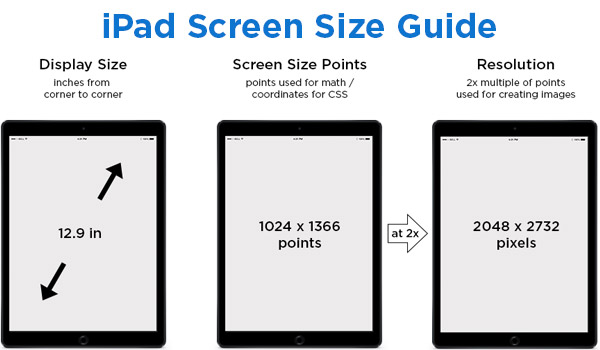
The first step is creating an image. To support the newest high resolution iPhone you’ll want to create the image at 114 x 114 pixels or larger (the device will resize the image to the correct dimensions). You can save your image as a PNG (if you plan to use transparency) or a JPG and place it in any directory on your site.

Next you’ll just add a simple bit of code to the HEAD of your site so the devices can find your image:

<link rel="apple-touch-icon" href="images/your_ios_icon.png" />

By default Apple devices will add rounded corners, a drop shadow, and reflection to your icon. If you don’t want those styles added or you’d prefer to add your own styles to the image file (like I did for my icon) you can use apple-touch-icon-precomposed instead.

<link rel="apple-touch-icon-precomposed" href="images/your_ios_icon.png" />

If you’re creating a precomposed image you can find templates for use around the web; here’s a good template from cocoia with Photoshop effects you can turn on/off.

iphone icon

* Note on Android Devices: versions 1.5 & 1.6 work with the “-precomposed” images only and 2.1 & new will read the tag without “-precomposed”.

HTML, mobile No Comments »

HTML 5 Video with Flash Fallback

HTML5 has some exciting new changes, most notably tags for embedding audio and video. Currently not all browsers will fully support these tags, but with the ability to fallback on different formats until one that works for your browser you can start using them today. The greatest benefit of using HTML5 video tags right now is its compatibility across multiple devices, notably mobile devices. The majority of mobile devices, including the iPad and iPhone, are currently unable to run flash based players. Adding the video tag allows these browsers to play your videos with their built in controls, expanding your potential audience.

Video Formats

The first item to look at when setting up the video tag is your video formats. Web browsers don’t currently agree on which video format should be the leader for the web so to support them all we’re currently stuck providing video in multiple formats. The two most common formats right now are H.264 (typically .mp4) and Theora (typically .ogv). H.264 is great format and common across the web as YouTube and the iTunes store both use it, but has a disadvantage in that MPEG LA owns the patent to the format and could potentially charge to encode videos in the future. Theora has the benefit of being royalty-free, but isn’t currently as widely used or integrated into as many tools. Currently Firefox and Opera only support Theora, while Safari (iPhone & iPad), Android, and Flash only support H.264. Internet Explorer is behind in supporting the video tag, which makes the ability to fallback to a Flash based player very useful.

Encoding Video

To encode .ogg files I’ve used Firefogg, which is a plugin for Firefox. This tool makes it very simple to create ogg files (for batch encoding try ffmpeg2theora). Simply install the plugin and then in FireFox go to the “Tools” menu and select “Make Web Video”. From there select a file that you’ll convert and if you want you can change the output settings for quality or video size. Make sure to leave the default video and audio codecs of Theora and Vorbis both set.

To encode h.264 files I recommend HandBreak. To get started open the video file you want to convert. Choose the iPhone & iPod Touch Default settings in the right menu (window > presets drawer if its not up). Next you’ll want to set the dimensions of your video (Picture tab on PC / Window > Picture Settings on mac). Choose either a specific size you want or change it to match the source settings (as they have changed to a size specific to the iPhone). Check the “Web Optimized” box and in the video you can adjust the quality if necessary to keep your file small. If your video has audio click on that tab and change the setting to “AAC (faac)”. Now you’re ready to encode, either click start or add to queue and repeat this process with another video.

handbreak

Setting up the Video Tag

If you got all the conversions done correctly, now is the easy part. Simply add a video tag with the height and width of your video. Adding “controls” to the tag will allow the user to pause/play the video and adjust the volume (other options for the video tag include preload, loop and autoplay). Then list the source location of the videos you created above in the order you want browsers to attempt to play them. If they are unable to play the first file they will continue to the next one.

<video width="710" height="400" controls>
     <source src="video_file.mp4" type="video/mp4" />
     <source src="video_file.ogv" type="video/ogg" />
</video>

Tips: The iPhone currently reads only the first video source so you’ll want your mp4 file listed first. If you’re maintaining your own server you’ll want to make sure you have these MIME types added: video/ogg .ogv & video/mp4 .mp4.

Falling back to Flash

The next step to cover yourself for old browsers and the always behind Internet Explorer is adding a Flash Player to the end of the video tag. The nice thing is this will work just like it did for the video files, if the first two don’t work it’ll move right on to the Flash. You can add in whichever Flash player you’d like to use, but my preferred player is the JWPlayer, so thats what I’ll be using.

<video width="710" height="400" controls>
     <source src="video.mp4" type="video/mp4" />
     <source src="video.ogv" type="video/ogg" />

     <object width="710" height="424" type="application/x-shockwave-flash"
     data="js/player.swf?image=image.jpg&file=video.mp4">
       <param name="movie" value="js/player-licensed.swf?image=image.jpg&file=video.mp4" />
     </object>
</video>

That’s all there is to setting up an html 5 video tag. Here’s a sample:

Related Links

Here’s a few projects and informational sites to check out for html video:

, , , , HTML No Comments »

Building a Dock with CSS Animation

After seeing some interesting uses of CSS animation, I decided to make a fisheye dock using only html, css and some images.

Currently not all browsers will support the functionality, but it will function correctly in Webkit browsers (Chrome / Safari) and Opera. The latest full release of Firefox (as of the writing of this article) doesn’t support css transitions so it won’t have the nice fade effects.

Dock Setup

The first step is to create some transparent PNGs to use as images for the dock. Then add the images to a list and put the text for the image in a paragraph tag. I’m also adding a div tag that we’ll use later in setting up a text bubble.

<ul id="dock-container">
  <li>
     <a href="#"><img src="images/catalog.png" alt="catalog" />
     <p>Catalog</p><div></div></a>
  </li>
  <li>
     <a href="#"><img src="images/passkey.png" alt="passkey" />
     <p>Login</p><div></div></a>
  </li>
  <li>
     <a href="#"><img src="images/certification.png" alt="certification" />
     <p>Certification</p><div></div></a>
  </li>
  <li>
     <a href="#"><img src="images/mountbuilder.png" alt="mountbuilder" />
     <p>MountBuilder</p><div></div></a>
  </li>
  <li>
     <a href="#"><img src="images/rackbuilder.png" alt="rackbuilder" />
     <p>RackBuilder</p><div></div></a></li>
  <li>
     <a href="#"><img src="images/videos.png" alt="videos" />
     <p>Video</p><div></div></a></li>
  <li>
     <a href="#"><img src="images/calculator.png" alt="calculator" />
     <p>Calculator</p><div></div></a>
  </li>
  <li>
     <a href="#"><img src="images/mobileSite.png" alt="mobile site" />
     <p>Mobile</p><div></div></a>
  </li>
  <li>
     <a href="#"><img src="images/savedProducts.png" alt="saved products" />
     <p>Saved</p><div></div></a>
  </li>
</ul>

Next add some CSS to float the images in a horizontal line and lower their size in the default state so they don’t become pixelated when they are zoomed.

#dock-container {
     font: Helvetica, Arial, sans-serif;
     font-size: 12px;
}
#dock-container li {
     float: left;
     list-style-type: none;
     text-align: center;
}
#dock-container a {
     color: #ccc;
     text-decoration: none;
}
#dock-container img {
     border: 0;
     width: 75px;
}

dock menus step 1

Text Bubbles

Before we add the animations, we’ll stylize the text below the images to make them look like speech bubbles. The bubble is created using border-radius and the arrow using our first transform to rotate the empty div created above forty-five degrees.

#dock-container p {
     background: #000;
     border-radius: 8px;
     -moz-border-radius: 8px;
     margin: 0;
     position: relative;
     padding: 2px 4px;
     z-index: 100;
}
#dock-container div {
     background: #000;
     width: 10px;
     height: 10px;
     margin: 0 auto;
     position: relative;
     bottom: 20px;
     -moz-transform: rotate(45deg);
     -o-transform: rotate(45deg);
     -webkit-transform: rotate(45deg);
}

CSS Transitions & Animation

Now we’ll add the CSS to animate the menu. First we’ll define the transition that we’ll apply to all the animation effects on images and paragraphs so they fade (ease) both in and out. After that I’m going to define a transition specifically for the opacity transformation because I want it to show up much faster. Finally, we add the scale transformation to increase the size of any images by 1.4x within the link tag when its hovered over.

#dock-container img, #dock-container p {
     -moz-transition: all .4s ease-in-out;
     -o-transition: all .4s ease-in-out;
     -webkit-transition: all .4s ease-in-out;
}
#dock-container p, #dock-container div {
     -moz-transition: opacity .1s ease-in-out;
     -o-transition: opacity .1s ease-in-out;
     -webkit-transition: opacity .1s ease-in-out;
}
#dock-container a:hover > img {
     -moz-transform: scale(1.4);
     -o-transform: scale(1.4);
     -webkit-transform: scale(1.4);
}

Finishing the Text Bubbles

We’ve just about got a working menu now. The final step is just getting the text bubbles to display only when the links are hovered. To do this we’ll just add opacity of 0 to those elements and then change it to 1 when hovered. The transition we set in the last step will quickly fade it in and out.

#dock-container p, #dock-container div {
     opacity: 0;
}
#dock-container a:hover > div, #dock-container a:hover > p {
     opacity: 1;
}

Here’s the working example (download the html):

, , , , CSS 1 Comment »

DODOcase Review

dodo case

When I pre-ordered my iPad I also ordered Apple’s case which I used on and off for about two months. The Apple case has great utility (angle for typing & stand for watching) and fits the iPad very well, but I would often take the case off when I was reading because it just didn’t feel as good to hold as the iPad by itself. I hadn’t seen anything out there that was worth replacing my Apple case… until I saw the DODOcase.

The DODOcase cost $50 and, like they say on their website, took about 6 weeks to ship. The case is hand-constructed and currently there is a high-demand, thus the extra long wait. It was worth waiting. The case is absolutely beautifully made. Inside the case is a frame, made from carved bamboo, that supports the iPad along with some corner pieces which shape to accommodate the device. The iPad fits perfectly in the case, but while it stays there just fine, I wouldn’t expect it to stay put with any vigorous shaking while upside-down. The cover secures with an elastic strap to prevent any iPad casualties.

The only issue I’ve found with the case has been that a couple of the rubber tabs holding the corners in place have separated from their adhesive on the top of the bamboo frame. I ended up using this to my advantage and folded those tabs underneath the iPad to make it fit in the case more securely. Now it won’t fall out even if I hold it upside-down. The other thing to be aware of is that this case doesn’t sit at as high of an angle as the Apple case, making it more difficult to type on. I say, “to be aware of” as I can’t really fault them for the angle as making the binding thicker would definitely lower the aesthetic appeal of the case. The DODOcase does stand up like Apple’s case if you have a flat surface and balance it using the cover.

Overall, the DODOcase is awesome.  I really love having a great looking case for such an amazing device and when its closed it looks like you’re just carrying around a Moleskine. The familiar feeling of caring this around makes me think that if Apple (or someone else) can come up with a fine-tipped stylus and an app with great handwriting recognition it could, for many applications, replace carrying a paper notebook.

, Gear No Comments »